

Create your first recurring activity
Set a Pipedrive activity to repeat every week, month or quarter, and see the first one appear in Pipedrive.
When you are done, you have a recurring activity, and its first activity is in Pipedrive as an ordinary activity you can open, edit and mark done.
-
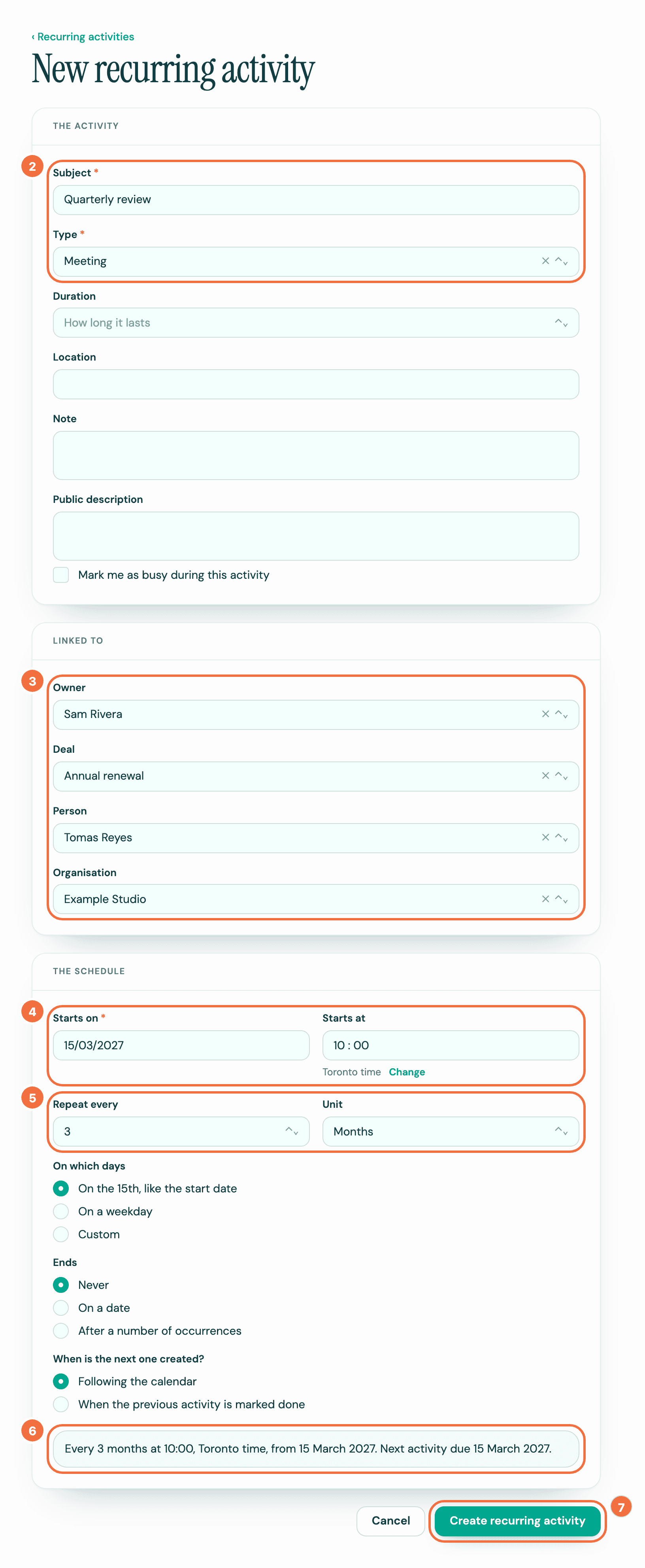
Select Recurring activities in the menu, then New recurring activity. The form looks like this:
-
Under The activity, enter a Subject, for example Monthly check-in, and choose a Type from your Pipedrive activity types. You need both, and both have a red asterisk.
-
Under Linked to, choose an Owner and, if you want, a Deal, Person or Organisation. Start typing a name to search your Pipedrive.
-
Under The schedule, pick the date in Starts on. You need it, and it has a red asterisk. Add a time in Starts at if the activity has one. Your time zone shows under it, from your Pipedrive settings: to use another, see Make an activity land at the right time in another time zone.
-
In Repeat every, type a number, and choose Days, Weeks, Months or Years in Unit. For a quarterly review, that is 3 and Months.
-
Read the sentence at the bottom of the form. It says in plain words how the activity repeats and when the first one is due. Under it, the next five dates are listed: check they are the ones you meant. See Check a recurring activity's dates before you save.
-
Select Create recurring activity.
The first activity is created straight away, due on the start date, and is in Pipedrive within seconds, at the time you set. You can find it on the deal, person or organization you linked.
Good to know
- Lyra Recurring creates one activity at a time. The next one is created once this one's date has passed, or as soon as you mark it done. You will not get a year of copies.
- Already have the activity in Pipedrive? Start from it instead: see Repeat activities you already have, from the Activities list.
- The rest of the form is optional. Each option has its own article: weekdays or chosen days, several days each week, waiting until the last one is done, stopping on a date or after a number of times, repeating every year.
If it does not work
- A field is marked in red. The form takes you to the first field to fix, and its message says what to do. Everything else you typed is still there.
- Under Starts on or Ends on, There is no …. Type another date or pick one from the calendar. or … is not a date. Type it as day/month/year, or pick one from the calendar. The date you typed doesn't exist, for example 31/02/2027. Pick a date from the calendar, or type a real one, and the message goes. Until then, the sentence at the bottom of the form says This start date does not exist. Choose another to see when this activity will run., or the same for the end date, and nothing is saved.
- A message appears at the top of the form, under Something went wrong. The problem is with the save, not with a field. The form takes you to the message, and what you typed is still there.
- Pipedrive could not be reached. Try again shortly. Select Create recurring activity again in a moment.
- This recurring activity could not be created. Try again. Select Create recurring activity again.
- Pipedrive is disconnected. Nothing new is being created. followed by "This was not saved." Select Reconnect in the banner at the top of the page. This leaves the form and loses what you typed, so note down anything long first. See Lyra Recurring says Pipedrive is disconnected.
- The activity is not in Pipedrive. Open the recurring activity and look at the Push column. See An activity is not showing in Pipedrive.
Set up Lyra Recurring and connect Pipedrive
Create your Lyra Recurring account and connect it to your Pipedrive company, so your recurring activities land in Pipedrive.
Choose how to add your first recurring activity
Getting started shows the two ways to add recurring activities, from a deal in Pipedrive or with a deal rule, and which of them you have already done.