

Make a recurring activity stop on a date or after a number of times
Set an end to a recurring activity, so it stops after a given date or once it has happened a set number of times.
When you are done, your recurring activity stops by itself, and its list shows it as Finished once it has.
- Open the form: New recurring activity, or Edit on an existing recurring activity.
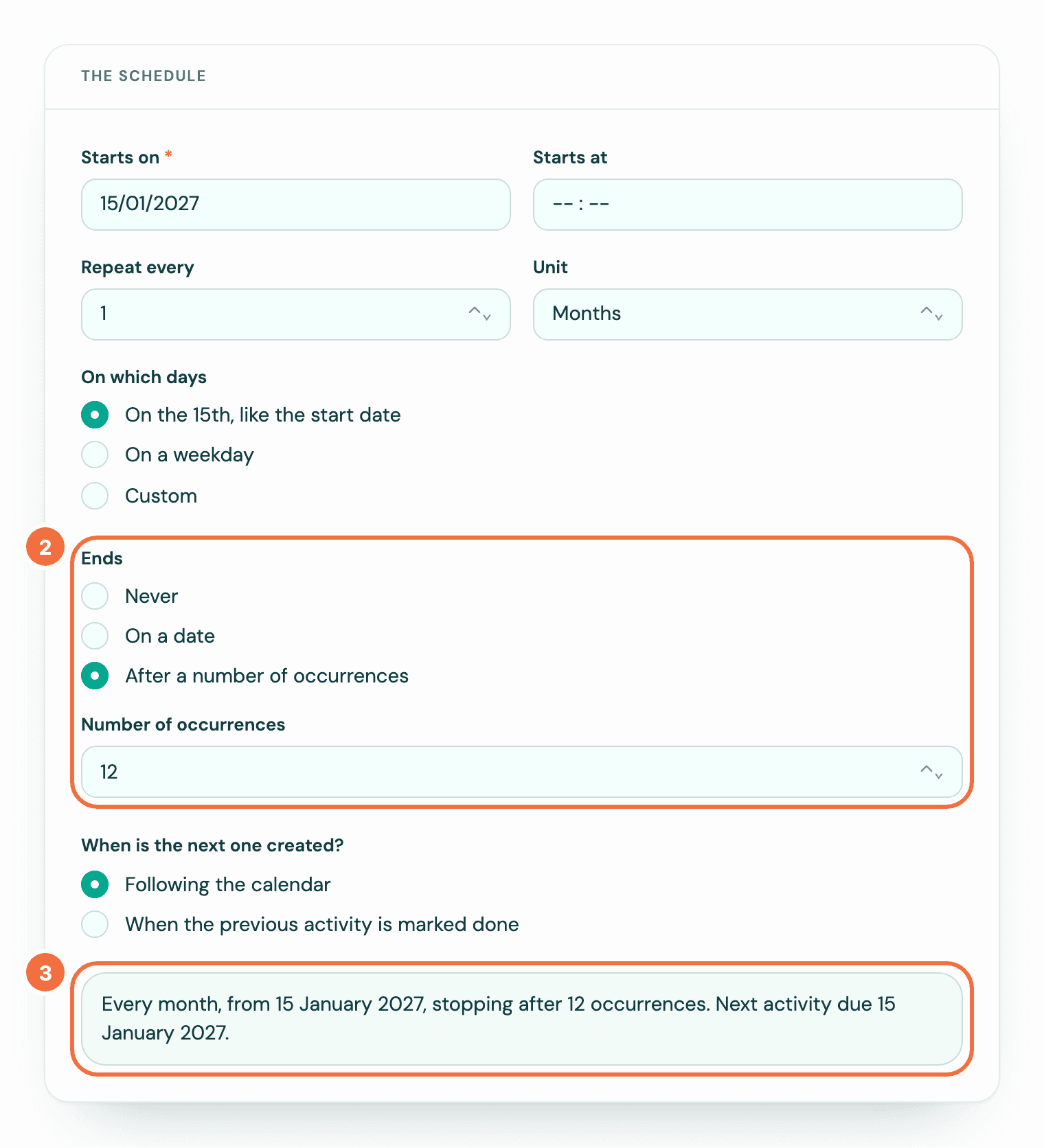
- Under The schedule, find Ends and choose one:
- Never: it keeps going until you delete it.
- On a date: pick the last day in Ends on. An activity due on that day still happens; none after it.
- After a number of occurrences: type how many in Number of occurrences.
- Check the sentence at the bottom of the form. It says when it stops, for example "until 31 December 2026" or "stopping after 12 occurrences". When the end is within the next five dates, the list under it ends with Then it stops., and its heading says how many there are in all, for example the heading All and the number, such as 3, then activities. See Check a recurring activity's dates before you save.
- Save.
Skipped ones count
If you skip some upcoming activities, they count toward the number. A recurring activity set to stop after 12, with 2 skipped, creates 10 and stops on the date it always would have.
Each activity counts: set to stop after 10, one on Mon and Thu lasts five weeks.
If you change how often it repeats, the number still counts the activities created or skipped. The dates the new repeat did not create are not counted. See Changing how often it repeats.
Stopping now
To stop a recurring activity today, delete it. Activities already created stay as they are, and you can restore it later. See Delete a recurring activity, or bring one back.
If it does not work
- The end date is refused. It must be on or after Starts on.
- You moved the end date into the past. The activity that was still open is cancelled, because the schedule no longer reaches its date.
Start a recurring activity from a date that has passed
Give a start date in the past and choose whether to create the activities it missed, or start from the next one.
Turn off, change or delete a deal rule
Stop a deal rule or change it, see which deals it gave a recurring activity, and know what happens to the ones it already made.