

Skip the next few activities
Skip one or more upcoming activities of a recurring activity, for a holiday week or a quiet month, without stopping it.
When you are done, the activities you skipped will not be created, and the recurring activity carries on after them.
- Select Recurring activities in the menu, then the subject of the one you want.
- Select Skip occurrences.
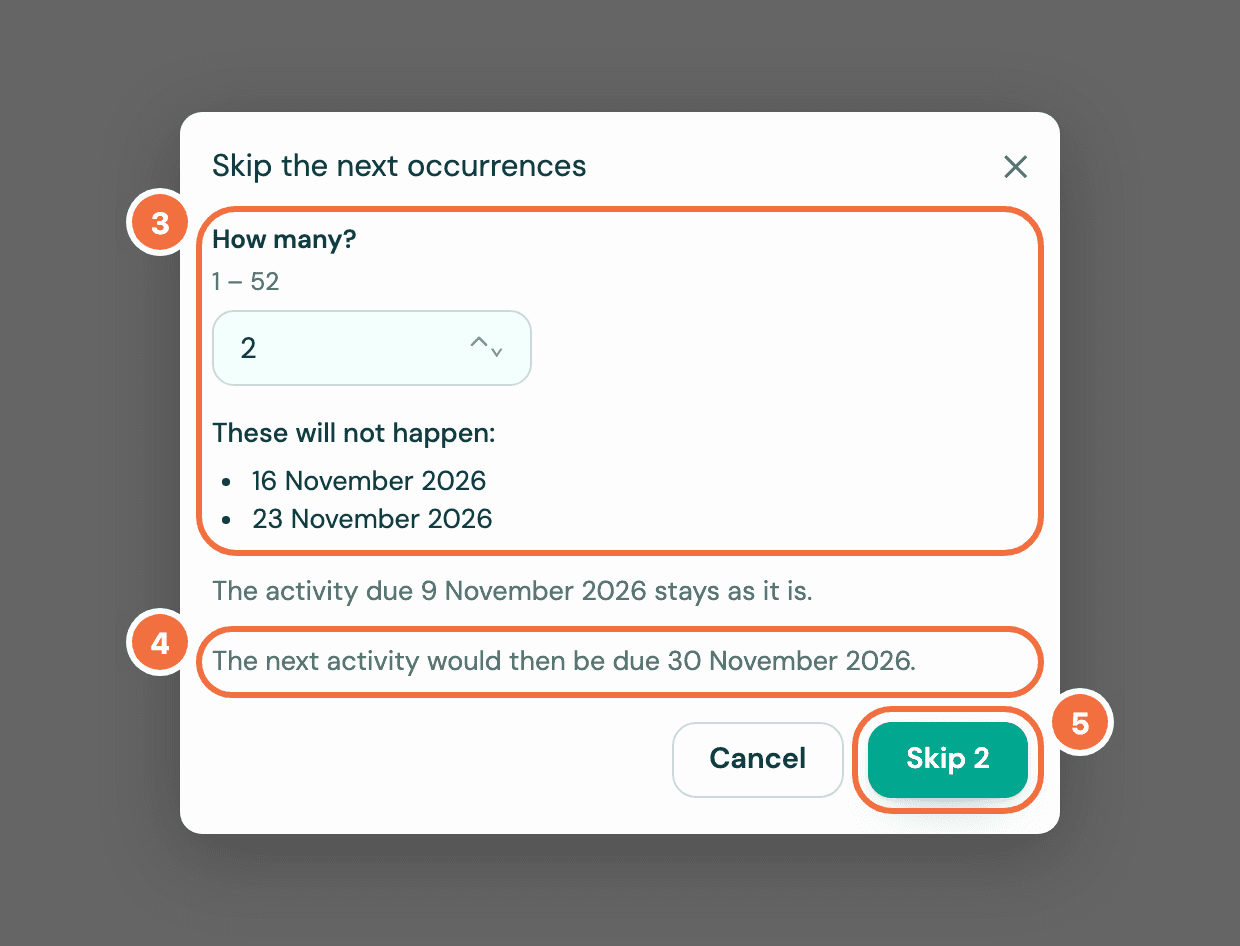
- In How many?, type the number to skip. Under These will not happen:, the dialog lists their dates.
- Check the line below, which says when the next activity would then be due.
- Select Skip followed by the number, for example "Skip 2".
The activity already open is not touched
Skipping only affects activities not yet created. If one is already in Pipedrive, it stays, and the dialog says so. To get rid of it, delete it or mark it done in Pipedrive.
Skips count toward an end
If the recurring activity stops after a number of occurrences, skipped ones count. Skip all that are left and the dialog says it will then be finished.
How many you can skip
You can skip up to 52 at once when the recurring activity never ends, or as many as it has left when it does.
After you skip, the recurring activity's screen records it under History.
If it does not work
- This recurring activity has changed since you opened this. Have another look. Someone changed it, or a new activity was created, while the dialog was open. Nothing was skipped. Check the dates and skip again.
- Skip occurrences cannot be selected. The recurring activity has finished, so there is nothing left to skip.
Sign in without a password, or reset it
Get an email link that signs you in, or choose a new password, including for an account created from Pipedrive.
Start a recurring activity from a date that has passed
Give a start date in the past and choose whether to create the activities it missed, or start from the next one.