

See who has connected Pipedrive, and remove a connection
Check that Lyra Recurring is connected, who in your company has connected, and remove someone's connection safely.
When you are done, you know whether Lyra Recurring is connected to your Pipedrive company, through whom, and what removing a connection would cost.
- Select Settings in the menu.
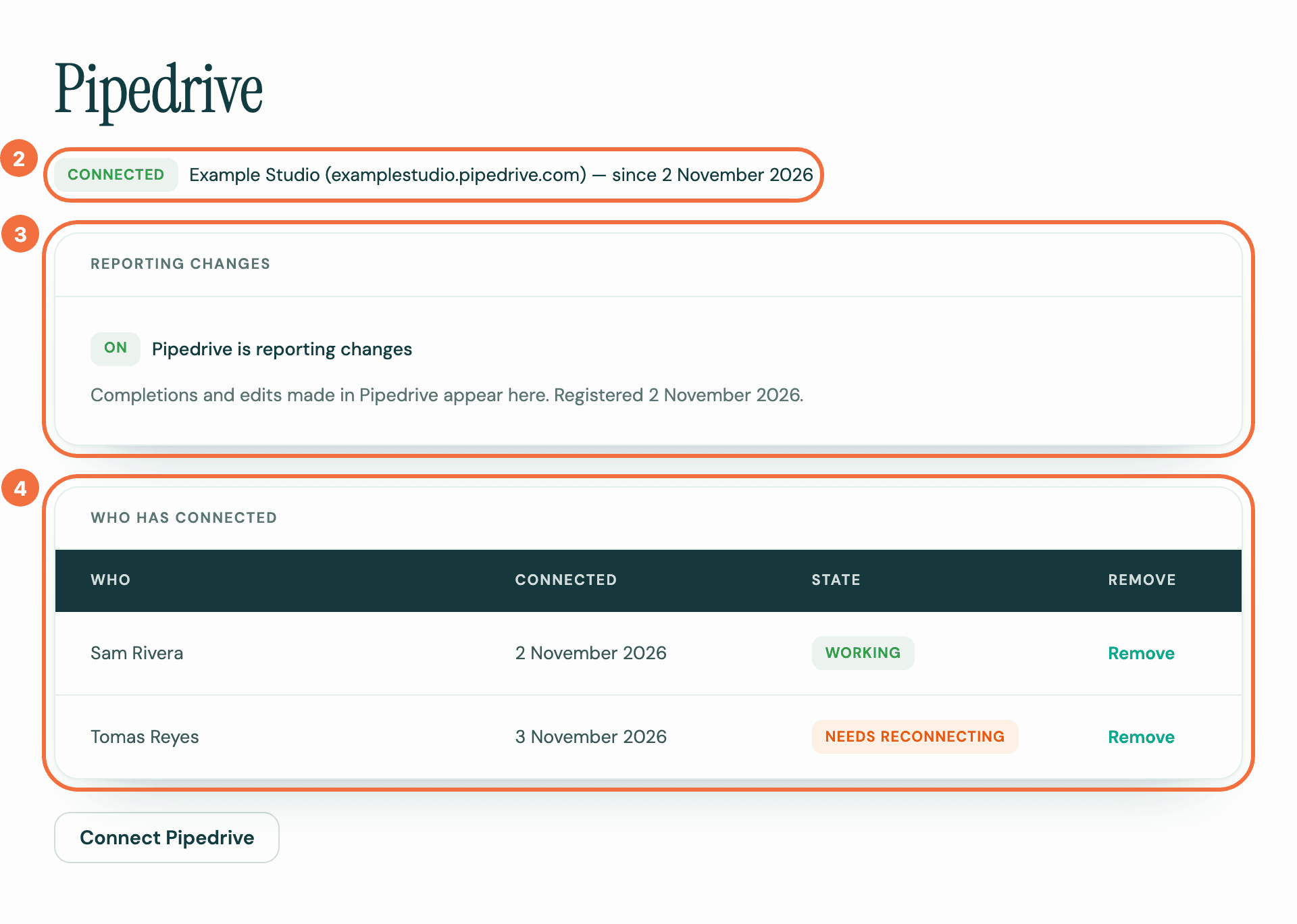
- At the top, Connected or Disconnected shows beside your Pipedrive company's name.
- Under Reporting changes, On means completions and edits made in Pipedrive reach Lyra Recurring.
- Under Who has connected, each person shows Working or Needs reconnecting.
Remove a connection
- Under Who has connected, select Remove on the person's row, or on your own.
- Read the dialog. It says what removing costs:
- if others are still connected, activities keep being created through them;
- if it is the last working connection, Pipedrive is disconnected for everyone and nothing new is created until somebody connects again.
- Select Remove.
Removing a connection also uninstalls Lyra Recurring from that person's Pipedrive, so the Recurring activities panel no longer shows on their deals, people and organizations until they connect again. It deletes no recurring activity and no activity, and the person can still sign in.
If One step left in Pipedrive shows
Pipedrive did not confirm the sign-out in time. The connection is removed and nothing is created through it any more, but Lyra Recurring may still be listed in that person's apps in Pipedrive. To finish, that person uninstalls it there, as in Uninstalling in Pipedrive below.
No Pipedrive connection of your own
When your colleagues' connections work and yours does not, a blue line at the top of the screen says so. Activities are still created through your colleagues' connections, but you need your own to use Lyra Recurring inside Pipedrive.
- You have no Pipedrive connection of your own. You never connected, or your connection was removed. Select Connect your Pipedrive.
- Your Pipedrive connection has stopped working and your row shows Needs reconnecting. Select Reconnect.
Uninstalling in Pipedrive
To uninstall, in Pipedrive go to Tools and apps › Installed apps, open Lyra Recurring, select Uninstall, then Uninstall again to confirm.
This removes your connection, as Remove does here. Your row leaves Who has connected, and nothing is deleted.
- While colleagues are still connected, recurring activities keep being created through them, including yours. Delete the ones you no longer need.
- A recurring activity with no Owner is then created through a colleague's connection, and Pipedrive makes that colleague the activity's owner. To keep it with one person, change the recurring activity and choose them as its Owner.
- If yours was the last connection, Pipedrive is disconnected and nothing new is created.
- Installing again brings you back to the same account and its recurring activities, unless your company's account has been closed. See Lyra Recurring says my company's account has been closed.
Connect, or reconnect
Select Connect Pipedrive and approve with your own Pipedrive login. If your connection shows Needs reconnecting, this repairs it.
If it does not work
- Reporting changes is Off. Select Register. See I marked an activity done and the next one did not appear.
- That connection could not be removed. Try again. Try again in a moment.
Make an activity repeat on several days each week
Create one recurring activity that puts an activity on each day you pick, such as every Monday and Thursday.
Repeat activities you already have, from the Activities list
Select up to 20 activities in Pipedrive's Activities list and make each one a recurring activity, without typing them in again.