

Contact Lyra Recurring support
Send a problem, a question or an idea to a person at Lyra Recurring from the app or from Pipedrive, and get the answer by email.
When you are done, your message is with a person at Lyra Recurring, and the answer comes to your own email address.
- In Lyra Recurring, select your name at the top right (or your initials, in a narrow window), then Contact support. It opens in a new tab, so the screen you were on stays as it was. In Pipedrive, select Support at the top of the Recurring activities panel on a deal, person or organization. It opens the same page in a new tab, already signed in, so your deal stays open.
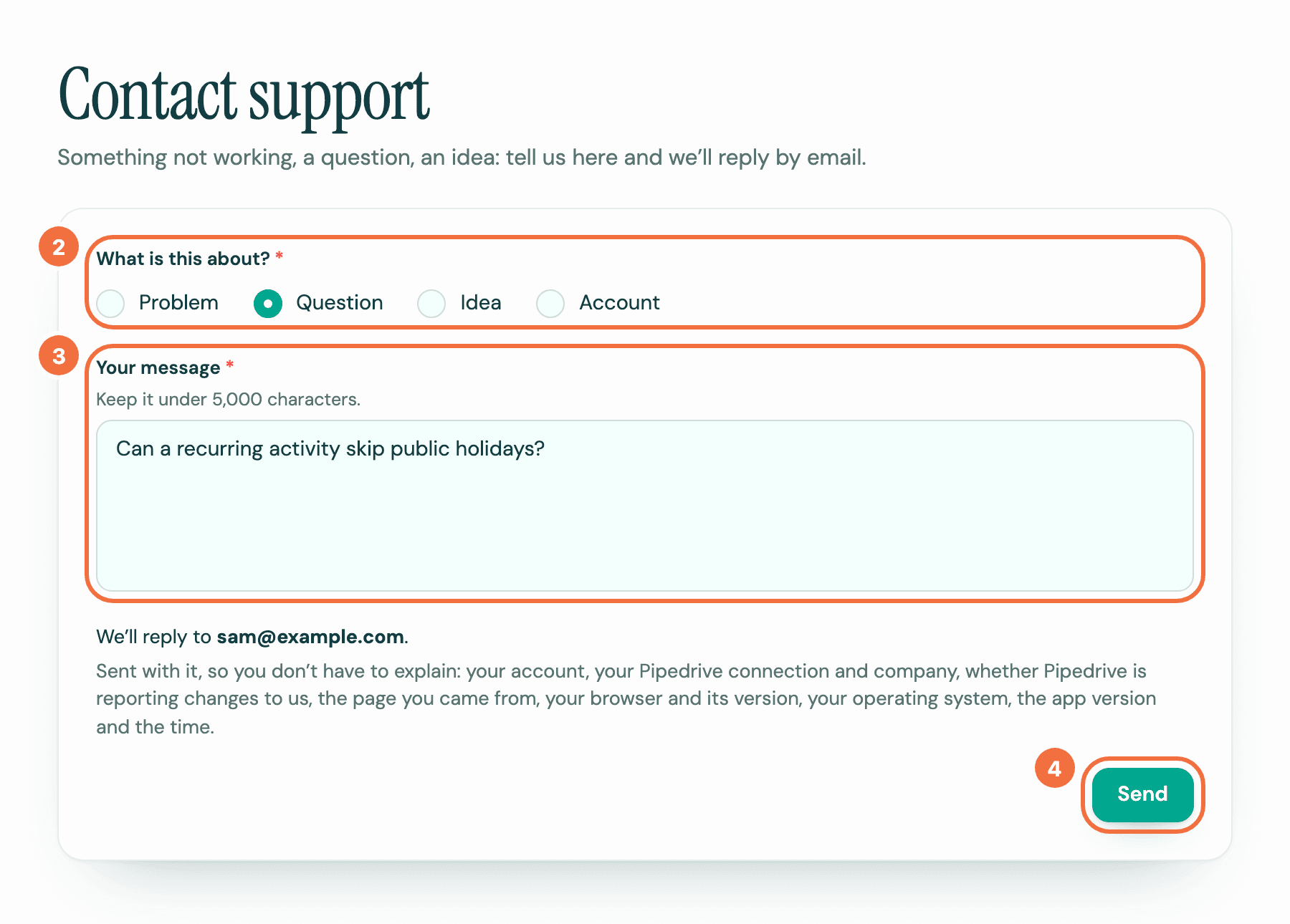
- Under What is this about?, choose Problem, Question, Idea or Account.
- Under Your message, write what happened or what you need. A sentence is enough.
- Select Send.
The page says Sent. Thank you. and that we will reply to your address within 2 working days. You can close the tab.
What is sent with your message
So you don't have to explain it, your message carries your account, your Pipedrive connection and company, whether Pipedrive is reporting changes to us, the page you came from, your browser and its version, your operating system, the app version and the time. If you came from the panel, it names the deal, person or organization by its number, not its name.
Sending a screenshot
The page takes text only. Send your message, then attach the screenshot when you reply to our answer.
If it does not work
The page says We couldn’t send this, and your message is still on it. What to do depends on the first words under that title:
- Your message is still here. Try again: select Send again, or copy your message into an email to the address at the bottom of this page, which works even if you can't sign in.
- Too many messages in a short time: don't send it again from the page. Email it to the address at the bottom of this page.
- You’ve been signed out: sign in again in another tab, then come back and select Send again.
There is no Support in the Pipedrive panel. It shows only once you have connected Lyra Recurring to Pipedrive. Use Contact support in the app instead.
Check a recurring activity's dates before you save
See the next dates a recurring activity will have, and which ones moved, before you create it or save a change.
Delete a recurring activity, or bring one back
Stop a recurring activity by deleting it, see how many activities that cancels first, and restore it if you change your mind.