

Sign in without a password, or reset it
Get an email link that signs you in, or choose a new password, including for an account created from Pipedrive.
When you are done, you are signed in to Lyra Recurring.
Sign in with an email link
-
On the sign-in screen, select Email me a sign-in link.
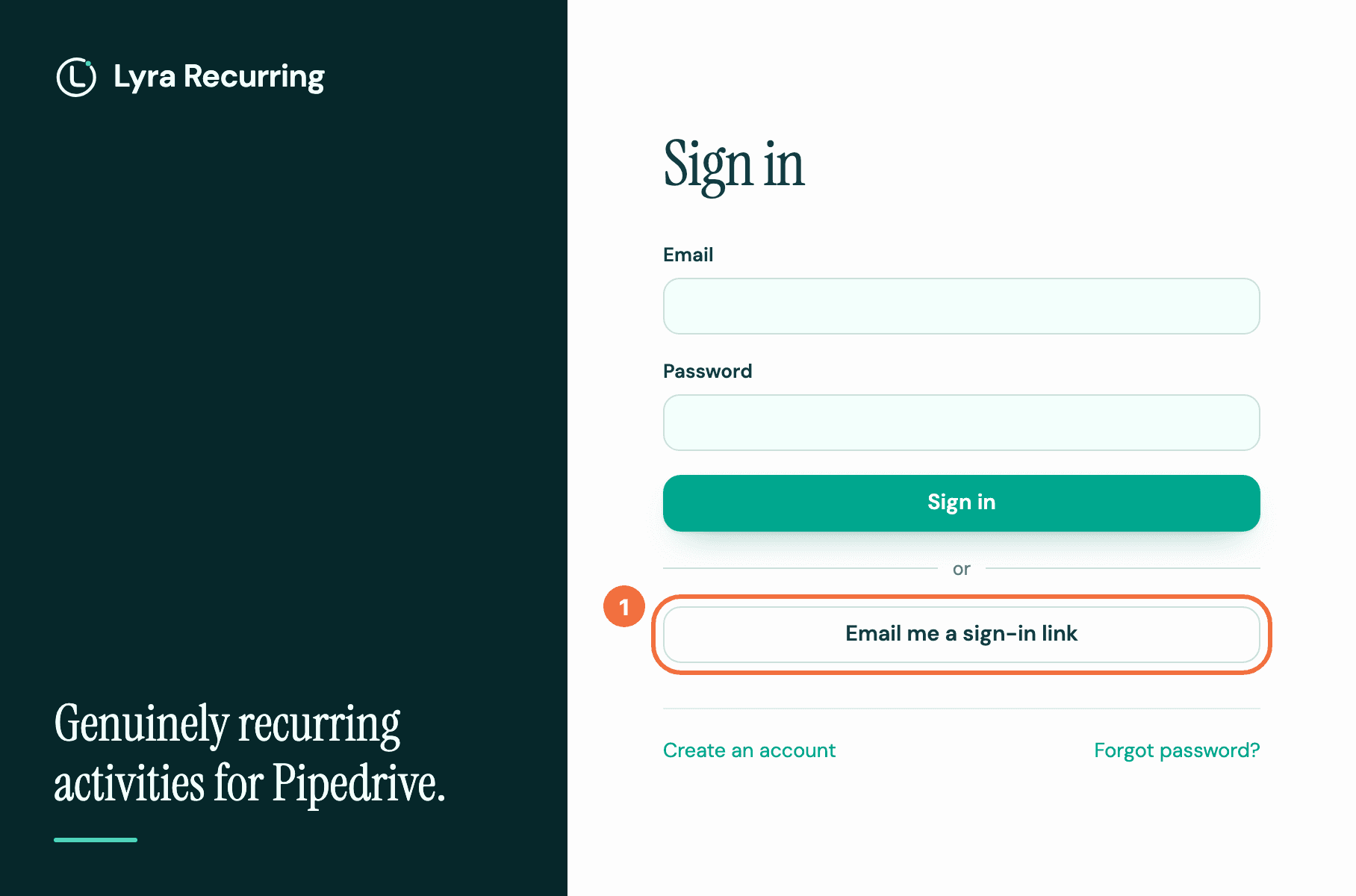
-
Enter your Email and select Send the sign-in link.
-
Open the email and follow the link. It works once, for a short time. If you were on your way to a recurring activity or another screen, the link takes you there.
Set or reset your password
- On the sign-in screen, select Forgot password?.
- Enter your Email and select Send the reset link.
- Follow the link in the email. On Choose a new password, enter a New password of at least 12 characters.
- Select Save the new password. This signs you out on every device, the tab you started in too.
- Sign in with your new password.
This is also how you set a first password on an account created from Pipedrive, which has none.
Got a welcome for an account you did not create? Reset the password to take the address back, then write to support if the account has anything you did not set up.
Keep your password when you use an email link
If you created your account with a password, confirm your address first. Either of these confirms it:
- Select Open Lyra Recurring in your welcome email while you are signed in, or sign in with your password after opening it.
- Save a new password through Forgot password?.
Until your address is confirmed, signing in with an email link removes your password and signs you out on your other devices. The first Lyra Recurring screen you open afterwards, in the browser where you followed the link, says This account no longer has a password, once. Select Set a new password there, and we email you a link to choose one. Accounts created from Pipedrive are confirmed from the start.
Too many sign-in attempts
After ten wrong passwords for one address within 15 minutes, or many from the same network, the sign-in screen says "Too many sign-in attempts. Try again in …", with the minutes left. Until then, even the right password is refused. The wait is 15 minutes at most, nothing is locked for good, and you do not need to write to support.
To get in now, select Email me a sign-in link: the link signs you in while the wait lasts. If you have forgotten your password, select Forgot password? and set a new one.
No email arrives?
The screen says If an account exists for that address, we have sent it a message whether or not there is an account, so it cannot be used to check addresses. Check the address you sign in with, and your spam folder.
If you ask for several links within a few minutes, a new one may not be sent, and the screen does not say so. A sign-in link works for 15 minutes and a reset link for 60, each once, and a newer link does not cancel an older one. Use the most recent one you have not used yet.
If it does not work
- That link did not work. It may have expired or already been used. Use Email me a sign-in link to get a new one. Your sign-in link no longer works. Select Email me a sign-in link on that screen, or sign in with your password. Either way, you go where the old link was taking you.
- That link did not work. It may have expired or already been used — ask for another. Your reset link no longer works. Select Ask for a new link. If you had already selected Save the new password once on this link, try signing in with the new password first.
- Something went wrong, and your password may not have changed. Try again in a moment. Select Save the new password again. If it then says the link did not work, try signing in with the new password before you ask for a new link.
- Check the email address and password and try again. Check both, or select Forgot password? to set a new one.
- Your password is refused and no email arrives, though you have used Lyra Recurring before. Your company's account may have been closed. See Lyra Recurring says my company's account has been closed.
- Your password stopped working after you signed in with an email link. Your address was not confirmed yet, so the link removed the password. Select Forgot password? and set a new one. Your address is confirmed now, so it does not happen again.
See what a recurring activity created, and who changed it
Open a recurring activity to see every activity it created, whether each reached Pipedrive, and every change with who made it.
Skip the next few activities
Skip one or more upcoming activities of a recurring activity, for a holiday week or a quiet month, without stopping it.